
Access rights
If you have a Mobile Dashboard Designer license, you can assign access rights to dashboards and dashboard reports.
The following table shows the actions allowed for each access right.
| Access Right | ||||||
|---|---|---|---|---|---|---|
| Action | Full Access | Save As | Quick Edit | View Only | Locked | No Access |
| View with no filter interaction | Yes | Yes | Yes | Yes | Yes | No |
| View with filter interaction available | Yes | Yes | Yes | Yes | No | No |
| Edit the report in Quick Edit mode | Yes | Yes | Yes | No | No | No |
| Edit the report in Designer mode | Yes | Yes | No | No | No | No |
| Use the Save As function | Yes | Yes | Yes | No | No | No |
| Save changes to the original design | Yes | No | No | No | No | No |
- Even if you are assigned the Full Access or Save As access right, you cannot edit the dashboard report in Designer mode unless you have a Mobile Dashboard Designer license.
- If you are assigned the Full Access, Save As, or Quick Edit access right, you can edit the report in Quick Edit mode even if you only have a Mobile Dashboard Viewer license.
- The Quick Edit access right only applies to dashboard reports, not dashboards. The editing functions are limited. For example, you cannot change the data source or apply access rights to a report.
You can specify access rights for one or more of the following:
- Role: You select the roles to have a specific access right.
- User: You select the users to have a specific access right.
- Everyone: Everyone who has Mobile Dashboards has the specific access right.
Changing the access rights for a report
- On the Sage Construction Central menu, select .
- Locate the desired report in the list of reports and click
 (the expand icon) at the far right of the report name to display the report details.
 - At the bottom of the report details area, select to go into report designer mode.
-
In the left menu, click Access.
Tip: If you do not see this menu, click
 (the menu icon) in the upper left of the page to open the menu panel.
 -
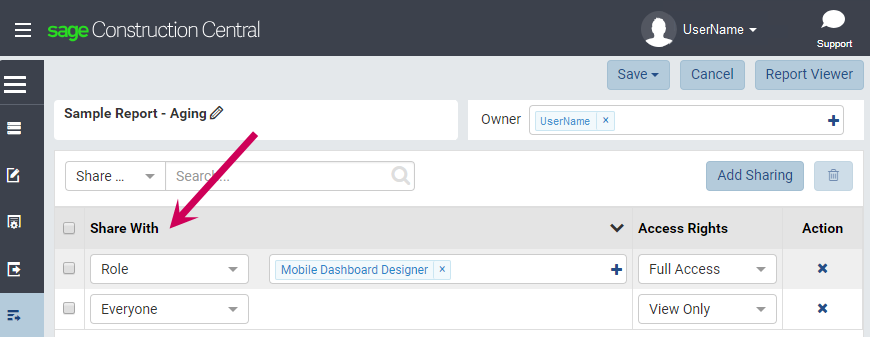
In the Share With area of the page, review the current access settings. View...
- To add access to the report:
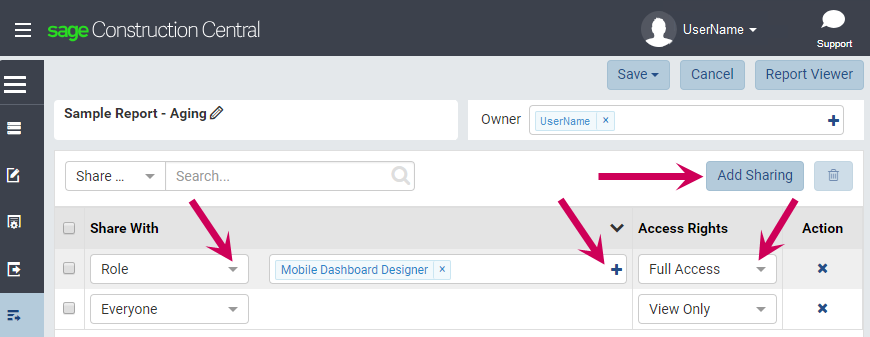
- Click [Add Sharing] (in the upper right of this area).
- Select the type of sharing (Role, User, or Everyone).
- (If needed) Select the roles or users to have the access right by clicking
 (the plus sign), selecting the check boxes before the roles or users, and then clicking [OK].
 - Select the access right from the drop-down list.
- If you want to remove a row in the Share With area, click the
 (the delete icon) at the end of the row, and then confirm that you want to delete that row.
 - Save the changes to your report.
Changing the access rights for a dashboard
- On the Sage Construction Central menu, select .
- Locate the desired dashboard in the list of dashboards and click (the expand icon) at the far right of the dashboard name to display the dashboard details.
- At the bottom of the dashboard details area, click to go into dashboard designer mode.
- At the top of the dashboard design, click Access.
- In the Share With area of the page, review the current access settings.
- To add access to the dashboard:
- Click [Add Sharing] (in the upper right of this area).
- Select the type of sharing (Role, User, or Everyone).
- (If needed) Select the roles or users to have the access right.
- Select the access right.
-
If you want to remove a row in the Share With area, click the
(the delete icon) at the end of the row and confirm that you want to delete that row. - Save the changes to your dashboard.