
Creating dashboards
A dashboard is a collection of report parts from dashboard reports that show your company information.
Note: You must have a Mobile Dashboard Designer license to create dashboards.
Tip: Watch the Create Dashboards video for more information.
To create a new dashboard for your website:
-
In the menu on the left, select .
Tip: If the menu is not in view, click
 (the menu icon) to display the menu.
 -
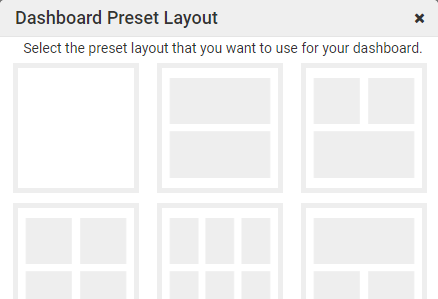
In the Dashboard Preset Layout window, click to select the preliminary layout you want to use for the dashboard. The page refreshes with the tiles laid out as you selected. View...
Note: You can move and resize the dashboard tiles later.
-
Click [Save] in the upper-right of the dashboard (just below the title bar). View...
-
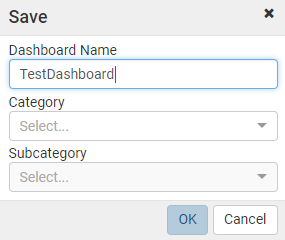
In the Save window, type the name for the new dashboard, select a category and a subcategory (optional), and click [OK]. View...

Designing dashboard tiles
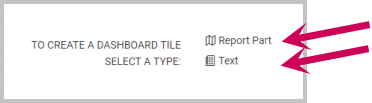
For a tile in the new dashboard, select either:
- Report Part - See Using a report part in a tile (the next section) or follow the steps in the "Use a report part in a tile" section of the Sage Construction Central Setup Guide.
-
Text - See Using text in a tile (later in this topic) or follow the steps in the "Use text in a tile" section of the Sage Construction Central Setup Guide.
Using a report part in a tile
- On the dashboard design page, click Report Part in the tile.
-
In the Report Part Selection (Search Criteria) window, search for the report that contains the report part that you want to use by entering search criteria and clicking [Search]¾or just and clicking [Search] to show all reports. View...
Tip: To locate an imported Sage report, select Local Categories for Save Into and select Sage for Category in the search criteria. See Sage dashboard reports for information about these reports and their report parts.
-
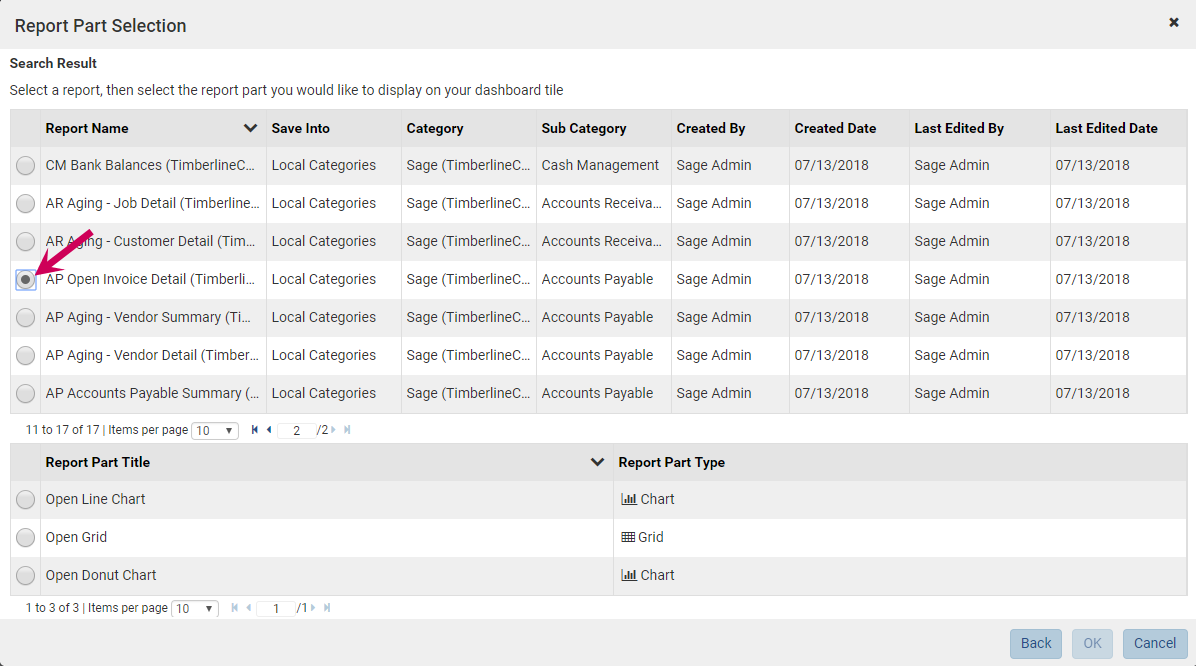
The Report Part Selection (Search Results) window displays a list of reports that meet your search criteria. Click before the report name to select a report. The bottom of the window then shows a list of report parts available for that report. View...
Tip: If there are many reports, use the navigation tools at the bottom of the Search Result list to move to the next page.
- Click before the report part name to select it.
- Click [OK] to display the selected report part in the dashboard tile.
-
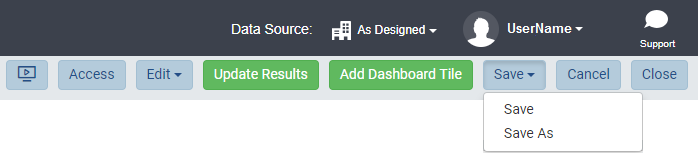
Save your changes to the dashboard by selecting Save > Save in the upper-right of the dashboard (just below the title bar). View...

Using text in a tile
- On the dashboard design page, click Text in the tile.
-
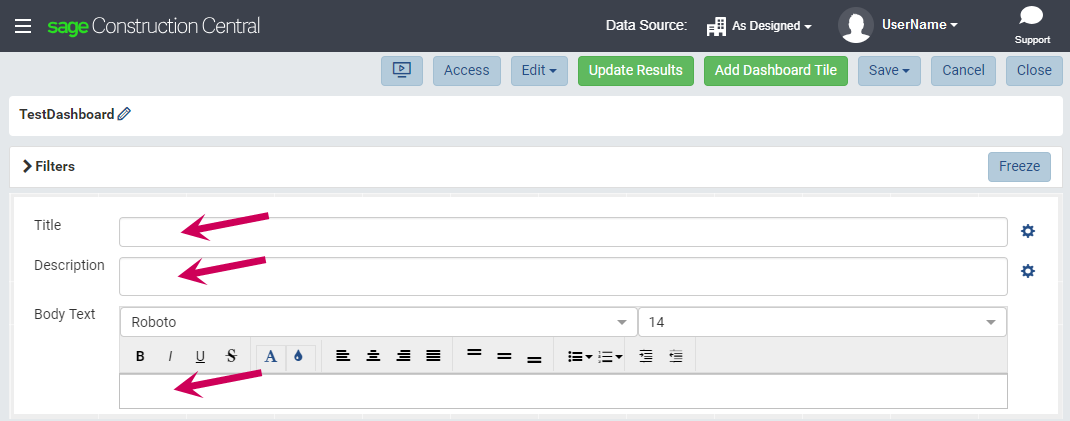
With the tile in Configuration Mode, enter the Title, Description, and Body Text. View...
-
(Optional) Format the text in the Title and Description by clicking
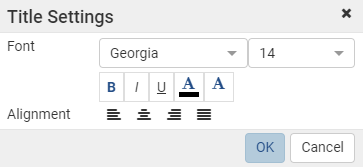
 (the settings icon), selecting the font characteristics and alignment in the Settings window, and clicking [OK]. View...
 - (Optional) Format the text in the Body Text by selecting the text to format, and then selecting font characteristics and alignment.
- To preview the tile, hover your mouse in the title area to show the toolbar, then click
 (the Switch to Preview Mode icon).
 - To switch from Preview Mode back to Configuration Mode, click
 (the Switch to Configuration Mode icon).
Moving and resizing dashboard tiles
You can easily move a dashboard tile using your mouse.
To resize a dashboard tile, hover over an edge or corner of the tile, and then drag it to the desired size.
Note: Other dashboard tiles affect the size and placement of the selected tile.
To delete a tile, hover over the top of the tile and click the  (the delete icon).