
Adding report parts
A dashboard report contains a collection of report parts that visually show your company information.
Note: You must have a Mobile Dashboard Designer license to create dashboard reports and report parts.
To add a report part to a dashboard report that is open in design mode:
-
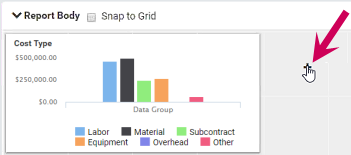
In the report part box in the Report Body panel, click to select one of the general report part types. (The Map report part type is not supported yet.) More...
-
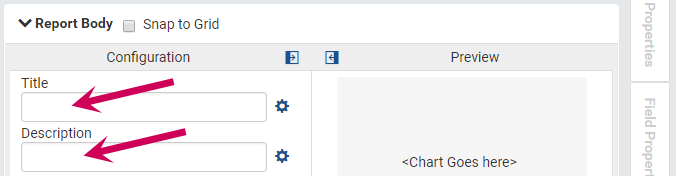
(Optional) To differentiate this report part from others and help when you select the report part for dashboards, change its name. More...
- (Optional) In the Configuration area, type the title and description for the report part. More...
-
Select the specific type of report part:
- Open the pane by clicking the < arrow in the upper right and then clicking the Report Part Properties tab.
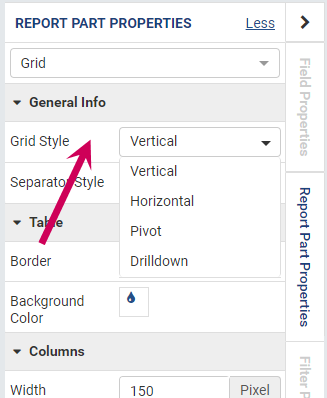
- In the section of the pane, select the type. Hover over the choices to see samples. Examples...
-
In the Configuration area, select the fields to use for , , Columns, and/or .
In a chart:- Label fields are used for an axis or a slice of a pie chart.
- Value fields are used for the amounts (the height of a column in a column chart or the size of a slice in a pie chart).
- (Optional) Separators are used to separate the data into groups, resulting in multiple charts.
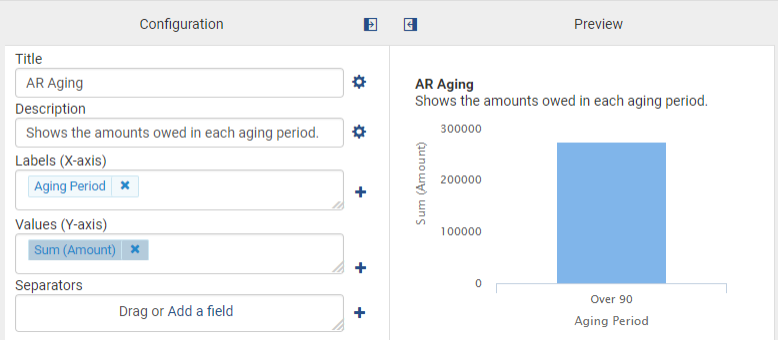 In a grid:
- Column fields are used for the columns across the grid.
- (Optional) Separators are used to separate the data into groups, resulting in multiple grids.
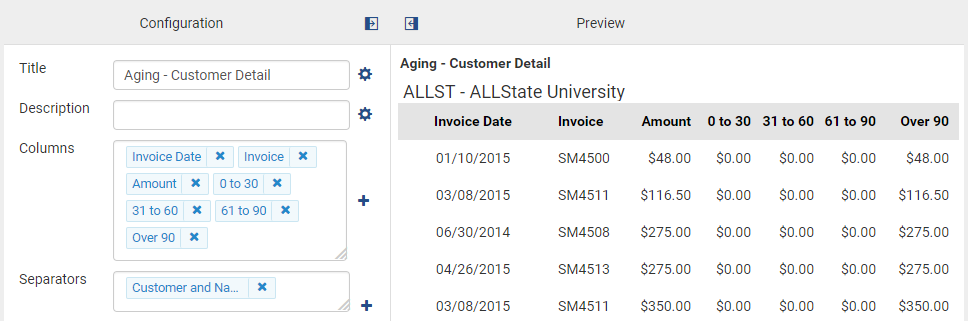
To add a field, you can either:
- Drag a field from the panel on the left into the , , Columns, or box.
- Click in the , , Columns, or box, select the check box before the field in the window, and click [].
After you select fields for these items, a sample displays in the Preview area of the Report Body panel.
-
Click [Save] (in the upper right of the page).
Important! When saved, the report is shown in Preview mode. To make additional changes, switch back to Configuration Mode by clicking
 (the Switch to Configuration Mode icon) in the upper right of the report part.
 -
(Optional) Customize the fields you choose in the , , Columns, and/or boxes. More...
-
(Optional) Customize the colors of a field in a chart or gauge. More...
-
(Optional) Add a legend. More...
-
(Optional) (Grids only) Add subtotals. More...
- Save your changes by selecting Save > Save As (in the upper right of the page).

 (the plus sign) on the gray report background.

 (the settings icon), making your selections, and clicking [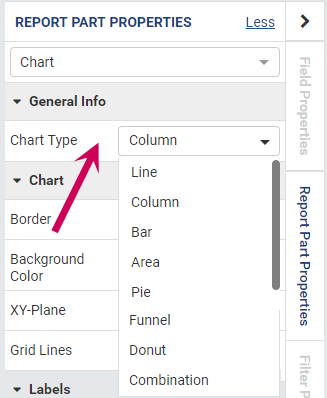
 (the color drop icon) after