
Creating drill downs
There are two types of drill downs:
Drill downs within a report part
If the report part contains more than one field for , these fields are automatically available for drilling down.
A column chart shows the total and paid invoice amounts by vendor type and state (the fields for ). If you click a column for a particular type of vendor, the screen displays the amounts by state for that vendor type. View...
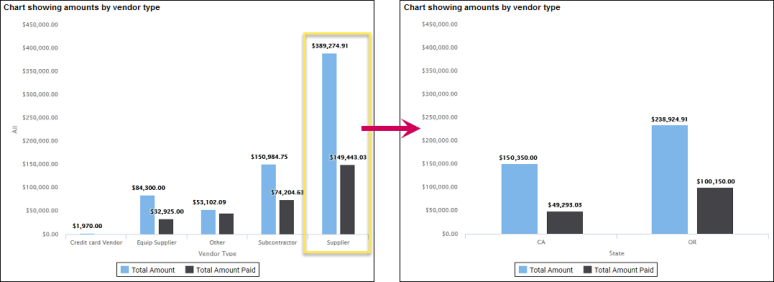
If you want all of the relevant report parts to drill down when one is selected for drill down:
- In the area for , click
 (the settings icon).
 - In the window, select .
- Click ]. The area will then show a green check mark:
Drill downs to another report
You can create a drill down to another related dashboard report (a sub report):
- With a report part in configuration mode, click to select the field for generating the drill down.
- Near the bottom of the pane for , click (the settings icon).
- In the Subreport Settings window for , select the report to be the sub report. You can use the Search feature to locate the report.
- Click [], select the field in the current report to use for the drilldown, and select the corresponding field in the sub report.
- For Style], select how you want the sub report to appear, such as a new window or popup.
- Click [OK] to save the sub report settings and close the window.
- Save your changes to the report part by clicking [Save] (in the upper right of the page).