
Viewing dashboard reports
To view dashboard reports that have been added to your website:
- In the menu on the left, select . If the menu is not in view, click
 (the menu icon) to display the menu.
 - The left menu changes to show ALL REPORTS grouped by categories. Click
 (the down arrow) to open a category and locate the report that you want to view. (You can instead scroll the list of reports in the main part of the page.)
 - To see details about a report, click
 on the far right of the row for that report.
 - To open the report, either:
- Click the report name.
- Click [Open] at the bottom of the report details area.
When the dashboard report opens, the various report parts display the data from the database used when the report was designed. For imported Sage reports, the database is shown in parenthesis after the report name. The title bar shows As Designed for Data Source:

Tip: If you have more than one company database, you can view the same report for another database by selecting it from the Data Source drop-down list.
Filters
If the dashboard report was designed with filters, you can apply the filters.
For example, the Sage AP Aging - Vendor Detail report can be filtered to show information about a particular vendor.
To apply a filter to a report:
- Click the Filters area above the report.
- For the filter, either:
- Select the value from the drop-down list.
- Type the value and press Enter.
-
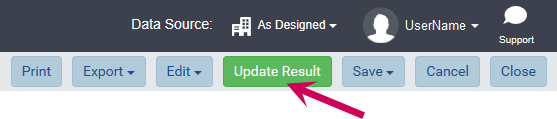
Click [Update Result] in the upper-right of the report.
Drill down for details
If the dashboard report was designed with drill-down links in a report part, you can click a link to view details about the data in a new tab.
Examples:
- In the Sage AP Aging - Vendor Summary report, you can click the vendor ID and name in the Vendor Summary grid to view invoice aging details for that vendor.
- In the Sage PM Aging Summary by Lease report, you can click a column in the Open Amount by Summary Charge Type chart to view the components of that charge type.