Creating dashboard reports
A dashboard report contains a collection of report parts that shows your company information from a data source.
Note: You must have a Mobile Dashboard Designer license to create dashboard reports. You must also understand the information stored in your company’s database.
To create a new dashboard report for your website:
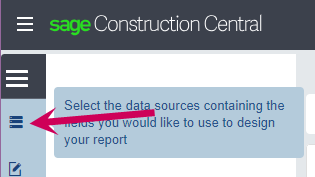
- In the left menu, select .
- Select the data source and views to use for the report. More...
In the left menu, click Data Source if it is not already selected.
A panel next to the left menu displays a list of the reporting (Reports) and standard (Std) views organized by company. Only select views for which you have security permissions, otherwise the report will not display properly.
Tip: You can click  (the expand arrow) to the right of a view to see the fields available. The icon in front of the field indicates its type.
Click  (the green check box) to the right of the views that you want to include in your report.
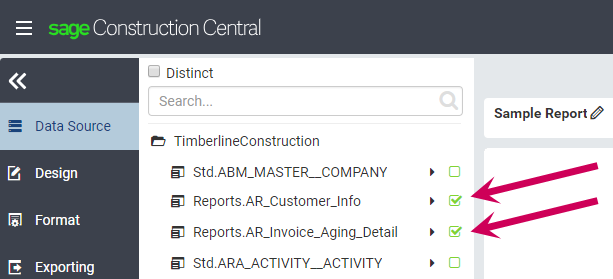
Tip: You can use Search (above the list of views) to locate view names with the search text.
Note: Do not select views from different companies.
If you selected two or more views (from the same company), the data model will automatically establish the joins between these views, which display in the main part of the page. If needed, you can click [Add Relationship] and establish the joins yourself.

-
Design the report. In the left menu, click Design. View...
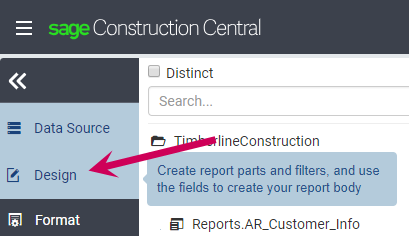
The main part of the page now shows details about the report.
-
Specify the name for the new report. More...
-
In the upper left of the page after Example Report Name (the default name), click  (the Edit icon).

-
Type the name.

-
To accept the new name, either:
- Press Enter.
- Click the green check mark after the report name.
Note: If you want to cancel the change, click the black X after the report name.
- (Optional) Specify filters for the report. More...
- Click
 (the right arrow) to expand the Filter area.
 Select the field or fields to use for the filter. (You can select multiple fields.) To select a field, either:
- In the Selected Data Source panel (on the left), select one of the available fields and drag it into the Filter area.
- Click [Add Filter] (in the upper right of the Filter area) and then select the field from the drop-down list in the Filter area.
View...

Note: To remove a field from the filter, click the white X after its name.
Specify the properties of the filter field in the Filter Properties pane on the right. Details...
Note: If this pane is not in view, click  (the left arrow) in the upper right, and then click the Filter Properties tab.
If needed, select the filter field at the top of the Filter Properties pane. Then, make selections in the Filter Operator and Filter Settings areas.
For a date field:
- Under Filter Operator, select Date & Time and then Between (Date).
- Enter the data range (start date and end date).
- Under Filter Settings for Filter Alias, type how you want the filter to appear in the report.
- If you selected more than one filter field, specify how the filters are processed for Filter Logic. You can use AND, OR, and/or parenthesis.
- If you want to show the filter criteria on the report, select the Show Filters Under Report Description check box.
- Save the report. More...
Click [Save] (in the upper right of the page).

In the Save window, change the name of the report if needed.
Note: If you have not selected any fields for the filter or report body, you can only save this as a template.
- (Optional) Select or type a Category and Sub-category.
- Click [OK].
- Add report parts to the body of the report. See Adding report parts.
- Specify the access rights for the report. More...
In the left menu, click Access.
- Make sure that your user ID is set as the Owner. You can click
 (the plus sign) at the right of the Owner line, select your user name in the All Users window, and click [OK].
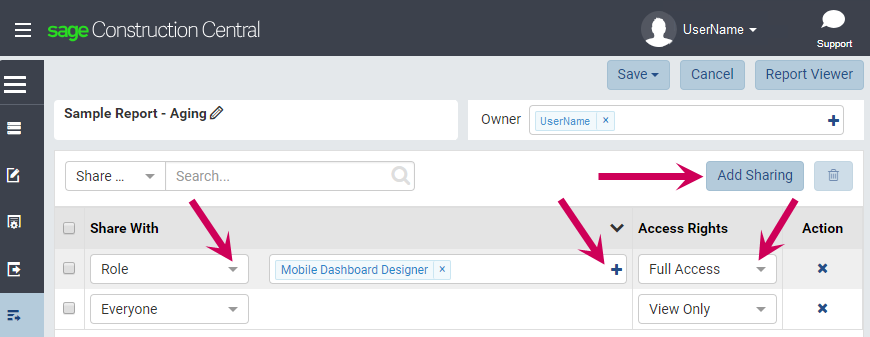
 By default, the new report will show the following rows in the Share With area:
- Everyone will have View Only rights.
- Those with a role of Mobile Dashboard Designer will have Full Access rights.
If you want to remove a row in the Share With area, click the  (the delete icon) at the end of the row, and then confirm that you want to delete that row. While you are working on the report, you may want to remove all rows to prevent others from accessing it.
To add access to the report, click [Add Sharing] (in the upper right of this area), select the type of sharing (Role, User, or Everyone), click (the plus sign) and select the roles or users to have the access right (if needed), and select the access rights. View...
- Save the changes to your report by selecting Save > Save (in the upper right of the page).
